Getting Started with Otipo - A Guide for Team Members
So you are starting to work with Otipo - a simple and easy web-based solution for shift scheduling.
So What Does it Mean to You?
It means you will be able to send your schedule requests from anywhere, at any time, as long as you have internet connection. Otipo reminds you to submit your request - you will get an e-mail 24 hours before the deadline for submitting request, and another e-mail and/or a SMS 4 hours before the deadline, if you haven't sent your requests yet.
Note that it is easier to send your requests this way, before the deadline. Otherwise, you will have to contact your schedule owner personally.
After preparing the schedule, the schedule owner will send you an e-mail with the schedule, and you will also be able to see it online. If the schedule owner allowed it, you will also be able to see your colleagues' availability, so that when you need so find a replacement for a shift, you can see who is available.
To download our mobile app look for "Otipo" in Google Play/ Apple Store.
So How Do I Get Started?
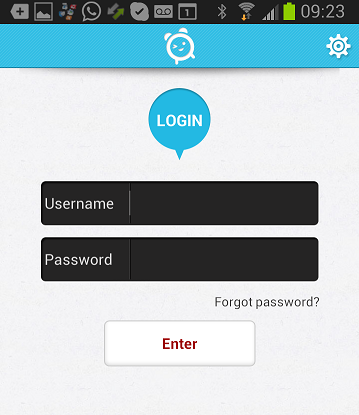
Soon you will receive an invitation via e-mail, with your initial password and instructions. On the Otipo Homepage click on the 'login' button and enter your e-mail address as username, and the password you have received

In the mobile app:
How Do I Send My Schedule?
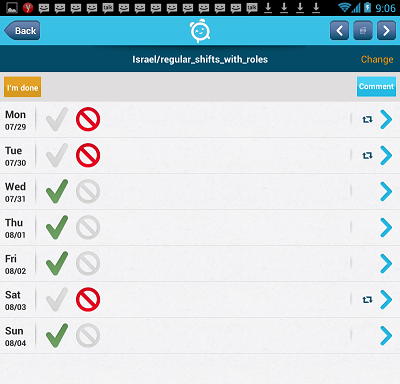
Simple! After you've logged-in, go to the 'My Schedule' page. Click on the shifts that you are free to work in. The sign of the shift will change to: ✓ (No. 1 in the screenshot). Another click will toggle the shift to mark that you can't work on that shift (No. 2 in the screenshot).

You can always see what you have marked as free and busy. For example, in the screenshot you can see that for this week you can work on all days except Tuesday and Saturday Evening and Night. Note that the dates of the week are marked at the top of the schedule - marked as No.3 in the screenshot.
Additionally:
- You can send special requests using free text in the Request/Comment box (No. 4 in the screenshot).
- Click on 'Available This Week' to mark all shifts as available, and on 'Unavailable This Week' to do the opposite.
- You know you won't be able to attend a certain shift in the coming weeks? Click the recurrence icon on the shift and type the number of weeks you want the availability for this shift to repeat.
- When you are done updating, click on 'I'm done, what's next?' (No. 5 in the screenshot)
In the mobile app:
You have completed sending your requests in less than a minute, it's that quick!
How Do I Know Which Shifts I am Scheduled For?
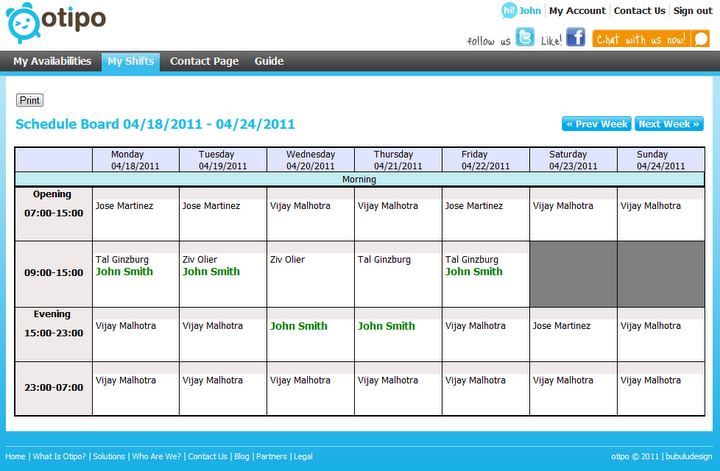
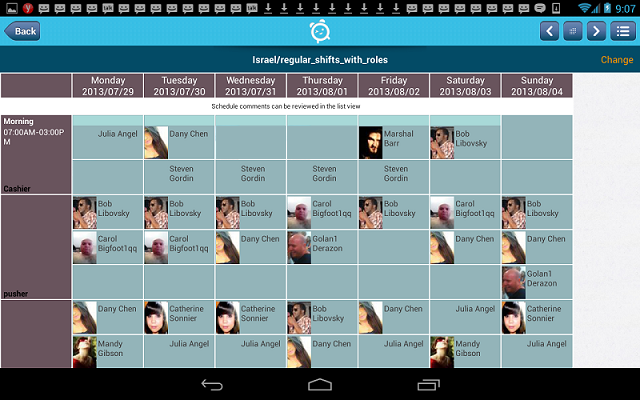
The schedule owner will send the schedule to you via e-mail. Moreover, At any time you can login and see your schedule.
In the mobile
Enjoy Using Otipo!
We are here to help! Should you have any question or comment, don't hesitate to contact us. All the details are in the contact us page.
Click here to start working with Otipo
|
|
|
|
|
|




 msg
Close
msg
Close
